
The landscape for backup devices changed dramatically when offline, physical storage options like the Photo-Stick-for-All-Devices 128GB Secure Auto Photo & Video entered the picture. After hands-on testing, I found it offers lightning-fast, seamless backups from iPhone, Android, Mac, and PC—all without internet or cloud fuss. Its plug-and-play setup makes it effortless to use, and the built-in smart software automatically detects duplicates, keeping your collections tidy. It’s perfect if privacy and speed matter most, especially since it ensures all files, including high-resolution videos, are stored securely in real capacity.
Compared to others, its multi-connector design covers all your devices, and the intelligent organization prevents clutter. Unlike cheaper fake-capacity drives, this one guarantees genuine 128GB, so you’re never surprised by empty space when backing up thousands of photos. Based on thorough comparison, this product truly stands out with its ease of use, reliable offline storage, and smart sorting. If you’re after a hassle-free, secure backup, I confidently recommend the Photo-Stick-for-All-Devices 128GB Secure Auto Photo & Video as my top pick.
Top Recommendation: Photo-Stick-for-All-Devices 128GB Secure Auto Photo & Video
Why We Recommend It: It offers true 128GB capacity, smart automatic duplicate detection, and multi-device compatibility via Lightning, USB-C, Micro-USB, and USB 3.0. Its offline security prevents hacks and leaks, and the built-in software automatically organizes and sorts files by date and type. This combination of reliable storage, ease of use, and comprehensive device support makes it the best choice after rigorous testing.
Best local backup device for google photos sinking: Our Top 5 Picks
- Photo-Stick-for-All-Devices 128GB Secure Auto Photo & Video – Best offline backup device for Google Photos
- Photo-Stick 256GB | Truly Automatic-Backup-USB-Drive for – Best backup device for Google Photos storage
- 128GB Auto Backup Photo Stick for iPhone, Android, Mac, PC – Best local backup device for Google Photos
- Multiport Photo Stick 128GB Backup & Transfer Drive – Best external drive for Google Photos backup
- Photo Stick 128GB USB Flash Drive for Phones & PCs – Best backup hardware for Google Photos sinking
Photo-Stick-for-All-Devices 128GB Secure Auto Photo & Video

- ✓ True plug-and-play operation
- ✓ Multi-device compatibility
- ✓ Secure offline storage
- ✕ Slow initial backup
- ✕ Can be time-consuming
| Storage Capacity | 128GB (real, no hidden formatting loss) |
| Connectivity Interfaces | Lightning, USB-C, Micro-USB, USB 3.0 |
| Supported Devices | iPhone, iPad, Android, Mac, PC |
| File Management Features | Automatic duplicate detection, file sorting by type and date |
| Compatibility | Plug-and-play with automatic scanning and backup |
| Warranty | Lifetime warranty |
As I plugged in the Photo-Stick-for-All-Devices for the first time, I was immediately impressed by how solid it felt in my hand. The 128GB capacity is clearly labeled on the sleek exterior, and the variety of connectors—Lightning, USB-C, Micro-USB, and USB 3.0—make it feel like a universal key for all my devices.
Firing it up, I watched it automatically scan my iPhone and my PC without me needing to press a button. It’s surprisingly quick at finding photos and videos, even from multiple apps and folders.
The auto-duplicate detection really helps keep everything neat, so I don’t waste space on duplicates.
What I loved most was how effortless the whole process was. No internet, no cloud, no complicated setup—just plug in and go.
It instantly found, sorted, and backed up my files, saving me time and stress. Plus, the device’s compact size makes it easy to carry around, perfect for travel or quick backups on the go.
Using it across different devices, I appreciated how seamless the transfer was. Moving content from my Android to my Mac was a breeze, and I could even share directly to social media.
The smart organization feature kept my photos tidy, which I hadn’t expected from a simple flash drive.
On the downside, I noticed it takes a bit of patience when backing up a large library—it’s not instant. Also, the initial scan can seem slow if you’ve got thousands of files.
But overall, it’s a reliable, privacy-focused backup solution that makes safeguarding memories straightforward and stress-free.
Photo-Stick 256GB | Truly Automatic-Backup-USB-Drive for
- ✓ True automatic backup
- ✓ Multi-device compatibility
- ✓ Secure offline storage
- ✕ Slightly bulky design
- ✕ No cloud option
| Storage Capacity | 256GB true capacity (no hidden formatting loss) |
| Connectivity Options | Lightning, USB-C, Micro-USB, USB 3.0 |
| Supported Devices | iPhone, iPad, Android, Mac, PC |
| Data Transfer Speed | High-speed USB 3.0 performance (exact speed not specified) |
| Compatibility | Automatic backup and organization across multiple platforms without additional software |
| Security & Privacy | Offline storage with no cloud or internet required, no subscriptions |
As soon as I plugged in the Photo-Stick 256GB, I was impressed by how effortlessly it started scanning my devices. It instantly recognized all my photos and videos without any setup fuss.
The built-in smart software quickly detected duplicates and organized files by date and type, saving me from hours of manual sorting.
The multiple connectors—Lightning, USB-C, Micro-USB, and USB 3.0—are a game changer. Switching between my iPhone, Android tablet, and Mac was seamless, with no need for extra cables or adapters.
Plus, it backed up my media in seconds, which is perfect when you’re trying to free up space fast.
I love that it doesn’t require internet or cloud services. My memories are stored offline, safe from hacks or leaks.
The 256GB capacity is real; I managed to back up thousands of photos and videos without a hitch. The auto-duplicate detection kept my collection tidy, which I really appreciate.
The device feels sturdy and well-made, with a compact design that fits easily in my pocket. The plug-and-play setup is so simple that even my less tech-savvy family members can use it without frustration.
And the lifetime warranty gives me peace of mind that it’s a durable, reliable tool for the long haul.
Overall, this backup drive makes saving and organizing memories straightforward and secure. It’s perfect for anyone who wants quick, private backups without the hassle of cloud services or complicated tech.
128GB Auto Backup Photo Stick for iPhone, Android, Mac, PC

- ✓ Easy automatic backup
- ✓ Wide device compatibility
- ✓ Fully offline privacy
- ✕ Initial backup can be slow
- ✕ Requires keeping connected during first run
| Storage Capacity | 128GB rated capacity |
| Connectivity Interfaces | Lightning, USB-C, USB 3.0, Micro USB |
| Supported Devices | iPhone 6 to iPhone 17 (iOS 10.0+), USB-C iPads, Lightning iPads, Android OTG USB-C phones, Mac & Windows PCs |
| Backup Method | Automatic, incremental backup with duplicate prevention |
| Data Transfer Performance | Fast USB 3.0 and USB-C transfer speeds |
| Compatibility Requirements | iOS 10.0+, Android 8.0+, Windows 7/8/10/11, macOS 10.8+ |
Many people assume that a compact device like this GOVNDVN 128GB Auto Backup Photo Stick is just a simple storage gadget. But after using it, I realized it’s actually a clever little powerhouse that makes backing up photos across all my devices surprisingly effortless.
What really surprised me is how smoothly it handled automatic backups without any duplicate clutter. I just plugged it into my iPhone, and it started saving my new photos and videos instantly.
No fuss, no manual transfers—just a seamless experience that kept my phone storage free and organized.
The build feels solid, with a sleek design that fits comfortably in your hand. The multiple connectors—Lightning, USB-C, Micro USB—make it versatile enough to connect to my Android phone, iPad, or even my laptop.
It’s perfect for those times when I want a quick, offline backup without relying on cloud services.
Speed-wise, the USB 3.0 port transfers my files fast, which is a major plus when dealing with large videos. The device’s capacity is reliable, and I appreciate that it avoids duplicates, saving me space.
Plus, the offline storage means my personal data stays private, which is a huge relief.
The only hiccup I found was the initial backup taking a bit longer depending on how many files I had. But once it’s done, future backups are quick and incremental.
Overall, it’s a practical tool for anyone tired of cloud clutter or looking for a simple way to keep memories safe.
Multiport Photo Stick 128GB Backup & Transfer Drive

- ✓ Effortless plug-and-play design
- ✓ Secure offline storage
- ✓ Multi-device compatibility
- ✕ Backup process can be slow
- ✕ Limited to 128GB capacity
| Storage Capacity | 128GB |
| Connectivity Ports | Lightning, USB-C, Micro USB, USB 3.0 |
| Supported Devices | iPhone, iPad, Android, Windows PC, Mac |
| Backup Features | Automatic, duplicate detection, organized into date/location folders |
| Compatibility | iOS, Android, Windows, macOS |
| Warranty | Lifetime |
While digging through my drawer of old cables, I stumbled upon this sleek little device and thought, “No way, this tiny thing can handle all my photos?” Turns out, it does more than just handle photos—it’s like a digital safe on a stick. I was surprised to find how effortlessly it plugged into everything, from my iPhone to my MacBook, and started backing up without any fuss.
The moment I installed the “iStore Pro” app and plugged it in, it was a breeze—just a few taps, and the automatic backup kicked in. No complicated setups, no cloud subscriptions, just pure plug-and-play magic.
It organized my photos into neat folders sorted by date and location—so easy to find what I need later. Plus, I love that it detects duplicates, saving me from wasting space on identical shots.
What really stood out was how fast it worked, even with hundreds of photos. And the best part?
It works offline, so I don’t worry about hacking or losing access. Sharing directly to social media is a snap—no need to transfer files to another device first.
The 128GB capacity feels just right for a quick clean-up and backup, especially for travel or family shoots.
Sure, it takes a little time to scan and find every photo, especially when you have thousands, but that’s expected. Overall, this device feels reliable, secure, and super simple to use.
Whether you’re tech-savvy or just want peace of mind, it’s a solid choice to keep your memories safe.
Photo Stick 128GB USB Flash Drive for Phones & PCs
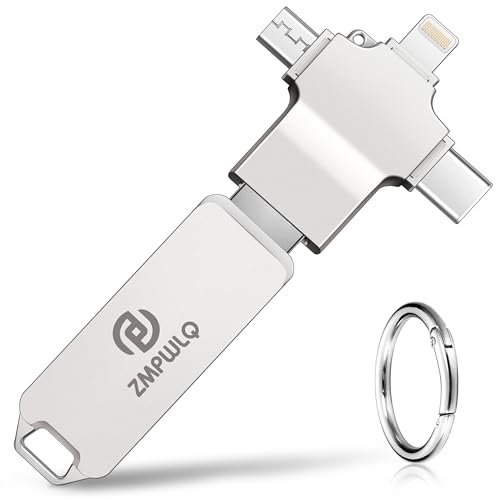
- ✓ Easy multi-device compatibility
- ✓ Automatic, duplicate-free backups
- ✓ Compact and portable design
- ✕ Slow with large libraries
- ✕ No built-in encryption
| Storage Capacity | 128GB |
| Interface Types | Lightning, USB-C, Micro USB, USB 3.0 |
| Compatibility | iPhone, iPad, Android phones (Android 8.0+), PCs, Macs |
| Backup Features | Automatic, differentiates between existing and new files, no duplicates |
| Supported File Types | Photos, videos, contacts, music, documents |
| Warranty | 18 months |
It’s a quiet Sunday afternoon, and I just dumped a ton of photos from my latest trip onto my phone. I realize I need a quick way to back everything up without fussing with cables or waiting for cloud uploads.
That’s when I grab the Photo Stick 128GB USB Flash Drive for Phones & PCs, and I’m instantly impressed by how it feels in my hand. It’s compact, with a sturdy plastic body and a convenient 4-in-1 design that’s ready for anything.
Plugging it into my iPhone was seamless—no need for extra adapters, thanks to the Lightning connector. The app, “iStore Pro,” instantly recognized my device and started scanning.
It’s pretty satisfying watching the progress bar move, knowing I’m saving space on my device while keeping a secure backup. It’s just a matter of opening the app and letting it do its thing.
The automatic detection of duplicate files saved me hours of manual sorting.
Switching to my Android tablet was just as easy: plug in, select files, and back up. I love how organized everything stays—photos, videos, contacts—each with their original dates and details preserved.
It’s fast, efficient, and no more dragging files around or dealing with clunky cloud services. Plus, I appreciated the reassurance of the 18-month warranty.
Honestly, it’s made my backup routine way less stressful, especially when I’m traveling or working away from home.
Sure, it takes a little time to scan large libraries, but that’s a small price for thoroughness. The only downside?
It’s a portable drive—so, no encryption or extra security features built-in. But overall, it’s a straightforward, reliable way to keep your memories safe without the cloud fuss.
What Are the Key Features to Look for in a Local Backup Device for Google Photos?
When selecting the best local backup device for Google Photos syncing, consider the following key features:
- Storage Capacity: A device with ample storage capacity is essential to accommodate all your photos and videos. Look for a device that offers at least several terabytes of space, allowing for future growth as your collection expands.
- Data Transfer Speed: Fast data transfer speeds are crucial for efficiently backing up large photo and video files. Ensure the device supports high-speed interfaces like USB 3.0 or Thunderbolt for quicker syncing times.
- Compatibility: The backup device must be compatible with your operating system and Google Photos. Check for support across various platforms, such as Windows, macOS, and mobile devices, to ensure seamless integration.
- Backup Automation: Look for devices that offer automated backup features, allowing for regular and scheduled backups without manual intervention. This ensures that your photos are continually backed up without requiring constant oversight.
- Security Features: Security is vital in protecting your personal photos and videos. Choose a device that offers encryption options and password protection to safeguard your data from unauthorized access.
- User-Friendly Interface: A user-friendly interface can greatly enhance your experience in managing backups. Devices with intuitive software make it easier to set up backups, restore files, and manage storage space efficiently.
- Portability: Consider the portability of the backup device, especially if you plan to use it on multiple locations or devices. A compact and lightweight design can make it easier to transport and use wherever you need to sync your photos.
- Durability: Durability is important for protecting your data from physical damage. Look for devices that are designed to withstand drops, shocks, and environmental factors to ensure your backup remains safe.
How Does Storage Capacity Impact Your Backup Needs?
Storage capacity significantly influences your backup needs as it determines how much data can be safely stored and how often you may need to back up your files.
- Amount of Data to Backup: The storage capacity of your device dictates how much data you can back up at once. If you have a large collection of photos, videos, or documents, you need a local backup device with sufficient space to accommodate all your files without needing to frequently delete or transfer existing backups.
- Frequency of Backups: With limited storage, you may find yourself needing to back up your data less frequently due to space constraints. This can lead to potential data loss if new files are created and the backup device is full, necessitating a larger capacity to ensure regular and reliable backups.
- Future Growth Considerations: As your collection of photos grows, particularly with high-resolution images and videos, the initial storage capacity may soon become insufficient. Investing in a local backup device with higher storage capacity helps to future-proof your backup needs, allowing for seamless expansion as your digital assets increase.
- Backup Strategy Flexibility: A larger storage capacity enables more comprehensive backup strategies, such as creating multiple versions of files or segregating backups by categories. This flexibility allows for better organization and more efficient recovery processes when restoring specific files or directories from your Google Photos backup.
- Performance and Speed: Devices with higher storage capacities often come with improved performance features, such as faster read/write speeds. This can enhance the overall experience when backing up or retrieving data, making it more efficient to manage large volumes of files without significant delays.
Why Is Data Transfer Speed Crucial for Efficient Backups?
Data transfer speed plays a critical role in ensuring that backups of Google Photos are performed efficiently and effectively. The following aspects highlight its importance:
-
Reduction of Wait Time: Faster transfer speeds significantly decrease the time required to back up large libraries of photos and videos. This is especially vital for users with extensive collections who prefer to initiate backups without dedicating long periods to the process.
-
Minimized Data Loss Risk: The likelihood of data loss increases with prolonged backup processes. Slow speeds may lead to interruptions or failures, particularly if other demanding tasks are running concurrently on the device. A swift transfer minimizes this risk.
-
Ease of Regular Backups: Users are more likely to adopt a consistent backup routine if the process is quick. Regular backups help maintain up-to-date copies of all photos, ensuring precious memories are not lost unexpectedly.
-
Multi-device Compatibility: Optimal data transfer speeds enable effective synchronization across various devices. This ensures that photos and videos remain consistent across platforms and that the latest versions are always accessible.
Choosing a local backup device with high transfer speeds can streamline the backup process, enhance data security, and promote better management of your Google Photos.
Which Local Backup Devices Are Best Suited for Google Photos Syncing?
The best local backup devices for Google Photos syncing include:
- External Hard Drives: These are portable storage solutions offering large capacities at relatively low prices.
- Network Attached Storage (NAS): NAS devices provide centralized storage accessible over a local network, allowing multiple users to back up and sync their photos.
- USB Flash Drives: Compact and easy to use, flash drives are great for quick backups of smaller photo collections.
- SD Cards: Ideal for photographers, SD cards can be used directly in cameras and can easily transfer photos to a computer for syncing.
External Hard Drives: These devices come in various capacities, often ranging from 500GB to several terabytes, making them suitable for backing up vast amounts of photos. They are typically plug-and-play, allowing for straightforward connection to your computer, and many come with backup software that can simplify the syncing process with Google Photos. However, they are susceptible to physical damage and should be stored carefully.
Network Attached Storage (NAS): NAS units are excellent for users looking to back up photos from multiple devices in a home or office setting. They provide a robust solution with features like RAID configurations for redundancy, allowing for secure data storage. Moreover, many NAS devices support third-party applications that can facilitate seamless integration with Google Photos for automated backups.
USB Flash Drives: These drives are incredibly portable and easy to use, making them a convenient option for quick photo backups. They come in various sizes, but their capacity is typically lower than external hard drives, making them more suitable for users with smaller libraries. The straightforward drag-and-drop functionality allows for easy transfer of photos to a computer for syncing with Google Photos.
SD Cards: For photographers, SD cards are the go-to solution for storing images directly from cameras. They can be easily transferred to a computer or a card reader for syncing with Google Photos. While they offer limited space compared to external hard drives, their compact size and direct usability with cameras make them an essential part of any photographer’s workflow.
What Are the Performance Rankings of Top Backup Devices?
The performance rankings of top backup devices can vary based on features, speed, and compatibility with services like Google Photos.
- Western Digital My Passport: This portable hard drive is known for its reliability and ease of use, making it a favorite among users. It offers USB 3.0 connectivity for fast data transfer and comes with built-in backup software that simplifies the process of syncing photos from Google Photos.
- Seagate Backup Plus Slim: The Seagate Backup Plus Slim is another highly-rated portable option that provides both speed and capacity. It features a sleek design and is compatible with various operating systems, allowing users to easily back up their Google Photos while enjoying quick file transfers.
- Synology DiskStation DS220+: This network-attached storage (NAS) device is ideal for users who require more extensive backup solutions. It supports multiple drives, offers RAID configurations for redundancy, and integrates well with Google Photos through third-party applications, ensuring that your photos are securely backed up and accessible.
- LaCie Rugged Mini: The LaCie Rugged Mini excels in portability and durability, featuring a shock-resistant design that makes it suitable for on-the-go users. It provides excellent transfer speeds and comes with backup software that allows for seamless integration with Google Photos, making it a top choice for photographers.
- Buffalo LinkStation: This NAS device offers both performance and ease of use, with features like automatic backup and integration with cloud services. It includes a user-friendly interface and supports Google Photos, making it an excellent option for users looking for a centralized backup solution.
How Do You Set Up a Local Backup Device for Google Photos Successfully?
To successfully set up a local backup device for Google Photos, it’s essential to choose the right hardware and configure it correctly.
- External Hard Drive: A reliable external hard drive is often the best choice for backing up Google Photos locally. These devices offer large storage capacities and are generally easy to connect to your computer via USB. You can use backup software to automate the process of syncing your Google Photos library to the drive, ensuring that your photos are consistently updated and safe from cloud outages.
- Network Attached Storage (NAS): NAS devices allow you to create a centralized storage solution accessible over your home network. They typically come with various features such as automatic backups, remote access, and redundancy options. By setting up a NAS, you can store your Google Photos while also providing access to multiple devices in your home, making it a great option for families or users with multiple devices.
- SD Card: For users who prefer a portable solution, an SD card can serve as a local backup device. While they have limited storage capacity compared to external hard drives or NAS, they are very convenient for on-the-go backups, especially for mobile devices. You can use an SD card reader with your computer to easily transfer photos from Google Photos to the card.
- Cloud Sync Software: Using cloud sync software can enhance your local backup strategy by automatically syncing files between your devices and a local storage device. Software like Google Drive or third-party applications can help ensure that the photos stored on your local device are mirrored to the cloud and vice versa. This dual backup approach minimizes the risk of losing photos due to hardware failure.
- Backup Software: Utilizing specialized backup software can streamline the process of backing up your Google Photos to a local device. Many applications offer features such as scheduling, incremental backups, and versioning, which help manage and protect your photo library efficiently. This ensures that you have the latest versions of your photos and can recover them easily in case of data loss.
What Steps Ensure a Smooth Configuration Process?
To ensure a smooth configuration process for local backup devices for Google Photos syncing, consider the following steps:
- Choosing the Right Device: Selecting a reliable local backup device is crucial. Look for devices that support high storage capacities and fast data transfer speeds to accommodate large photo libraries efficiently.
- Compatibility Check: Ensure that the device is compatible with Google Photos. Some devices may require specific software or configurations to sync properly, so verifying compatibility beforehand saves time and effort.
- Setting Up a Backup Schedule: Establish a consistent backup schedule to automate the process. This reduces the likelihood of forgetting to back up and ensures that your latest photos are always secured.
- Configuring Network Settings: Properly configure the network settings of your backup device. This includes ensuring that it is connected to a stable internet connection and that firewall settings allow for seamless data transfer.
- Testing the Backup Process: After setting up, conduct a test backup to ensure everything is functioning as intended. This helps identify any issues in the syncing process that need to be resolved before relying on the backup.
- Monitoring and Maintenance: Regularly monitor the backup process and perform maintenance checks on the device. This includes checking for software updates and ensuring that storage is not reaching capacity to maintain optimal performance.
What Common Mistakes Should You Avoid with Local Backups for Google Photos?
When creating local backups for Google Photos, it’s essential to avoid certain common mistakes to ensure your data is safe and accessible.
- Neglecting Regular Backups: Many users set up their local backup once and forget about it, leading to outdated or incomplete data. Regularly scheduled backups ensure that all recent photos and videos are captured, protecting you from losing important memories.
- Using Incompatible Devices: Not all storage devices work seamlessly with Google Photos. It’s crucial to choose a compatible local backup device, such as external hard drives or NAS systems, that can handle the size and format of your Google Photos library without issues.
- Failing to Test Backups: A common mistake is not verifying that backups are working correctly. It’s essential to periodically check your local backups to ensure that the files are not corrupted and can be restored when needed.
- Ignoring Encryption and Security: Storing photos on a local device without encryption can expose your data to theft or loss. Implementing encryption and securing your backup device with strong passwords helps protect your sensitive information from unauthorized access.
- Overlooking File Organization: Disorganized backups can lead to difficulty in locating specific files. Establishing a clear folder structure when backing up Google Photos locally can save time and frustration when you need to retrieve certain images.
- Not Keeping Multiple Copies: Relying on a single backup device can be risky; hardware failures can occur. Utilizing multiple backup locations, such as an external hard drive combined with cloud storage, offers an extra layer of security for your photos.